
How to export data from HubSpot, and which export to use
HubSpot has a different export for records, a full CRM backup, property history and reports. Which one to use, where to find it, and what each leaves out.

HubSpot has a separate export for each kind of data: records (contacts, companies, deals, tickets), a CRM backup that takes every object at once, property history for the old values of one property, and report exports for the numbers in a report. Pick the one that matches what you need, using the guide below.
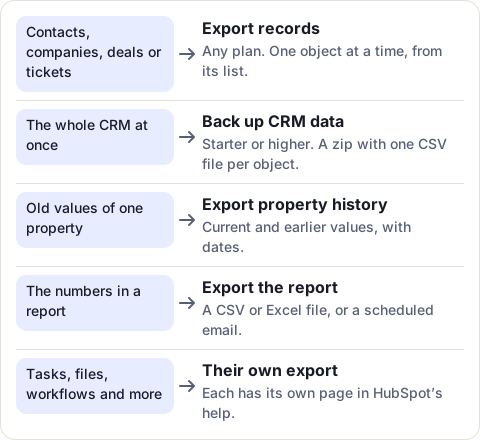
Export your records: contacts, companies, deals
Use this for contacts, companies, deals or tickets. It works on every HubSpot plan and gives you a CSV, XLS or XLSX file of one object.
- Open the object’s list, for example CRM > Deals.
- To export every deal, open the All deals view; otherwise open the saved view you want.
- Click Export at the top right of the table (on a board, Board options > Export view).
- Choose the file format and which properties go in the file, then click Export.
HubSpot emails you a download link, which works for 30 days. You need the Export permission, and you can run up to 300 exports in 24 hours. Every past export stays in your export log for 3 years.
One thing to watch: an export of all your contacts includes those who unsubscribed. To leave them out, HubSpot suggests a filter: Unsubscribed from all email is not equal to True.
The step-by-step guide for contacts covers each option and the file-size limits.
Back up the whole CRM at once
When you want everything, for a backup or before a big clean-up, use Backup & Restore. It needs a Starter, Professional or Enterprise plan and Super Admin permission.
- Click the settings icon in the top bar.
- In the left menu, under Data management, click Backup & Restore.
- Click Create manual backup, then Create backup.
- When HubSpot notifies you that it’s ready, click Download.
You get a zip with one CSV file per object. Download it within 14 days.
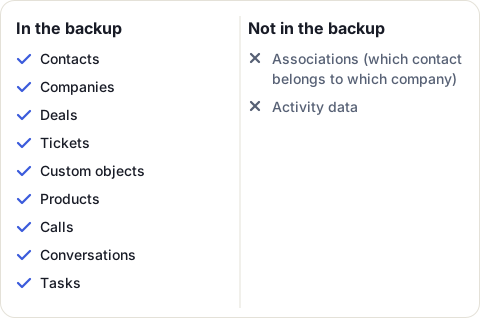
A backup leaves two things out. It doesn’t hold associations, so the files don’t say which contact belongs to which company. Activity data isn’t in it either; calls, conversations and tasks are in it as records of their own. If you need the links between records, export the records and choose All properties and associations on records (or keep the default, which includes the associations in your view).
How often you can back up depends on your plan:
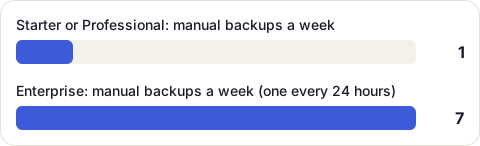
The backup also includes the values of properties that hold sensitive data. Store the file somewhere safe.
Export the history of one property
A record export holds today’s values. If you need to know what a property said before, for example the lifecycle stage before a mass update, export that property’s history: Settings > Properties, hover over the property, More > Export property history.
The file lists each record’s current and earlier values, with the date of each change. Our guide to exporting property history shows how to read the file and how to use it to undo a mistake.
Export a report or a dashboard
To get the numbers behind a report, open Reporting > Reports, hover over the report, and use Actions. You can export it as a CSV or Excel file, email it once or on a schedule, or save it as an image. See how to export a HubSpot report for each option and the report types that can’t be attached to an email.
Everything else has its own export
HubSpot’s help page “Export your content and data” also covers account, revenue, content, marketing, sales and service data, each with its own export. A few that people often look for:
- Tasks: their own export, described on HubSpot’s help page “Export tasks”.
- Workflows: a spreadsheet of all your workflows, with their status, enrollments and who changed them last. It has no performance data and no history.
- Calls, meetings and other sales activity: through a report built with the custom report builder, or HubSpot’s Engagements API.
- Website pages, blog posts and files: each from its own tool.
When an export is not enough
Every export above is a picture of one moment. If your team works from a sheet of contacts, companies or deals every day, the picture goes out of date with the next edit in HubSpot, and someone has to export again.
CRM Sheet Sync keeps the sheet current instead. It puts your HubSpot contacts, companies or deals in a Google Sheet, checks HubSpot for changes every minute (every 30 seconds on the Pro plan), and shows owners, stages and dropdown values by their names instead of IDs. It only reads HubSpot, so it never changes your records. Compare it with the other ways to get HubSpot data into Google Sheets.
Sources
- HubSpot Knowledge Base: Export your content and data, read 16 November 2026
- HubSpot Knowledge Base: Export your records, read 16 November 2026
- HubSpot Knowledge Base: Back up your CRM data, read 16 November 2026
- HubSpot Knowledge Base: Export property history, read 16 November 2026
- HubSpot Knowledge Base: Share or export reports and dashboards, read 16 November 2026
Frequently asked questions
Can I export all my data from HubSpot at once?
Your CRM records, yes: Backup & Restore makes a zip with one CSV file per object, on Starter plans and higher, for Super Admins. It leaves out associations and activity data, and tools such as files, workflows and reports each have their own export.
Does HubSpot save export history?
Yes. Past record exports stay in your export log for 3 years. The download link in each export email works for 30 days.
Can HubSpot export data on a schedule?
Two ways. On Enterprise, CRM backups can run every week or every two weeks on their own. On any plan, a report can be emailed daily, weekly or monthly; single object, event-based and customer journey reports can carry a CSV or Excel file, other reports arrive as a picture.
Is there a limit on HubSpot exports?
Up to 300 record exports in a rolling 24 hours, and three at the same time. Extra exports wait in a queue.