
How to export property history from HubSpot, and undo a mistake
Export the past values of a HubSpot property, read the file, know how many changes HubSpot keeps, and put back values a bad update overwrote.

To export a property’s history in HubSpot, click the settings icon, go to Properties, hover over the property, then click More > Export property history. HubSpot sends you a download link by email. The file has the current and earlier values of that property for every record that has or had one, and the date of each change. Below: the steps, how to read the file, how far back it goes, and how to use it to put back values overwritten by mistake.
What the export gives you
The file covers one property, for every record that has or once had a value for it. For each record you get:
- the current value and the values before it;
- when each value was set;
- if you ask for it, what made each change: which user or which tool.
It works on every HubSpot plan. You need two permissions: CRM Export, and Edit All on the object, for example Edit All on contacts.
Export a property’s history in 6 steps
- In HubSpot, click the settings icon in the top bar.
- In the left menu, click Properties.
- Click Select an object and choose the object, for example Contact properties.
- Hover over the property, click More, then Export property history.
- Choose a File format. Tick Include Source Information to see which user or tool made each change.
- Click Export.
HubSpot sends the download link by email and to your notification center.
Read the file
Each row is a record. The values run from left to right, newest first, each with the date it was set.
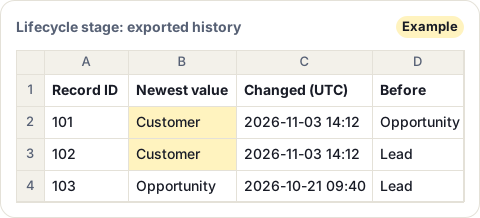
The dates are in UTC, not your HubSpot time zone. A change made at 9:12 in New York in November shows as 14:12, so convert before you match a change to what happened in your team that day.
HubSpot keeps 45 or 20 changes, not a time period
HubSpot keeps a limited number of changes for each property. The limit depends on the object:
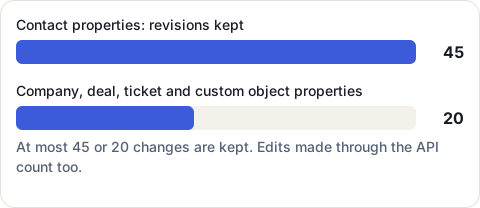
Changes made through the API count towards the limit, the same as edits by hand. A property that an integration updates many times a day can reach the limit fast, so its history may cover only a short period.
Undo a mistake with the history file
If an import or a workflow overwrote the wrong values, the history file holds the values from before. HubSpot’s own method puts them back with an import:
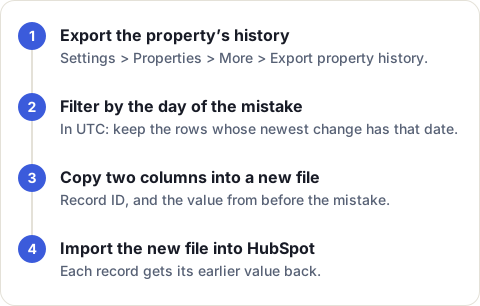
- Export the history of the property that was overwritten.
- Filter the date of the newest value by the day of the mistake, in UTC. Only the records changed that day are left.
- Make a new file with two columns copied from the history file: Record ID, and the column with the value just before the mistake.
- Import the new file into HubSpot.
Before you import, check that no record was changed again after the mistake: its newest value would then no longer be the wrong one. After the import, those records hold their earlier values again. If the mistake is recent, HubSpot also has a separate tool to restore CRM changes made in the last 14 days, linked from the same help page.
Keep your own history in a Google Sheet
The export answers “what changed in this one property”. It doesn’t show every change across your records in one place, and it holds at most 20 or 45 changes per property.
If your team keeps HubSpot data in Google Sheets, CRM Sheet Sync can keep a log of your contacts, companies and deals. On its Pro plan, you can turn on a changes tab for each sync. It keeps the last 14 days: one line per change, newest first, with the time in your HubSpot time zone, the record, the column, the value before and the value after. New and removed records get a line too. Pro can also save a dated copy of the data every week or every month.
The log starts when you turn it on and covers the columns you sync, so it doesn’t replace HubSpot’s own history. It does put the recent changes where your team already reads the data. The 7-day free trial includes the changes tab and the snapshots.
Sources
- HubSpot Knowledge Base: Export property history, read 16 November 2026
Frequently asked questions
How far back does HubSpot property history go?
It keeps a number of changes, not a period: up to 45 for a contact property and 20 for a company, deal, ticket or custom object property. Changes made through the API count too.
Which time zone are the dates in?
UTC (Coordinated Universal Time), even if your account uses another time zone. Convert them before you compare them with your team's local times.
Who can export property history in HubSpot?
A user with the CRM Export permission and the Edit All permission on that object.
Can I see who changed a property value?
Yes. Tick Include Source Information when you export, and the file shows the user or tool behind each change.