
How to export contacts from HubSpot, step by step
Export your HubSpot contacts to a CSV, XLS or XLSX file in a few clicks, open it in Google Sheets, and know when an export is not enough.

To export contacts from HubSpot, open your contacts, pick the view you want, and click Export at the top right of the table. Choose a file format, and HubSpot emails you a link to download the file. Below are the steps, the options that change your file, the limits, and how to open the file in Google Sheets.
Before you start
- You need the Export permission. HubSpot’s help says export permissions “are required to export records”. If you don’t see the Export button, ask your HubSpot admin for the Export permission.
- The export follows the view you open. To export every contact, open the All contacts view; it includes contacts who unsubscribed. To export fewer, open the saved view you want, for example “Customers in France”.
Export your contacts in 6 steps
- In HubSpot, click More > CRM > Contacts (or CRM > Contacts directly, if your account has no More menu).
- Open the view you want to export: All contacts for every contact, or one of your saved views.
- At the top right of the table, click Export. In board view, click Board options > Export view.
- Choose the File format: CSV, XLS or XLSX.
- Name the export. To get the column headers in another language, change Language of column headers (only the headers of default properties are translated, not the values).
- Choose which properties go in the file (next section), then confirm.
HubSpot then sends you an email with a download link. The link works for 30 days.
Choose what goes in the file
By default, the file holds only the properties and associations shown in your view: the same columns you see in the table. Click Customize to change it:
- Properties and associations in your view (the default).
- All properties on records: every contact property, without associations.
- All properties and associations on records: everything.
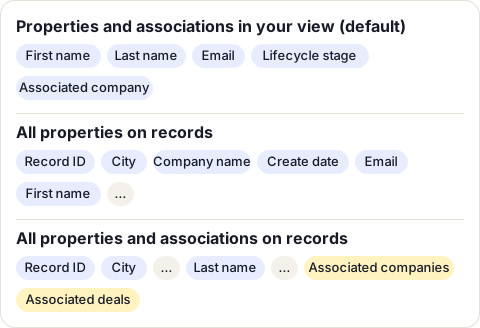
With all properties, the columns come in alphabetical order, with the Record ID first. For associated records, such as a contact’s companies, the file lists up to 1,000 per contact by default. All associated records is only offered for CSV files. A contact with several email addresses gets them all if you tick Include all email addresses.
The limits worth knowing
- 300 exports in a rolling 24 hours, and three at the same time. Extra exports wait in a queue.
- A large export can take a few hours.
- A CSV file over 2 MB arrives zipped. Unzip it before you open it.
- Very large exports come as several files in one zip: above 1,000,000 rows for CSV and XLSX, and above 65,535 rows for XLS.
- XLS keeps 256 columns and XLSX 16,384. Extra columns are dropped. CSV has no column limit, so choose CSV when you export all properties.
Open the file in Google Sheets
- Download the file from HubSpot’s email. If it is a zip, unzip it.
- In Google Sheets, open a spreadsheet, then click File > Import and choose your file. Sheets takes CSV, XLSX and XLS files, among others.
- Choose where the contacts go: Create new spreadsheet, Insert new sheets, or Replace current sheet.
- For a CSV file, leave the separator on Detect automatically, then click Import.
Your contacts are now in a sheet, one row per contact.
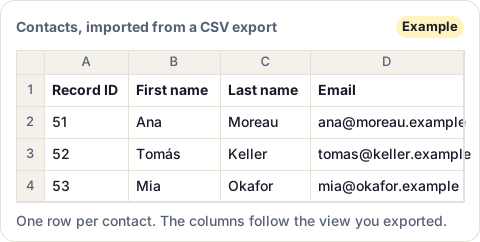
When an export is not enough
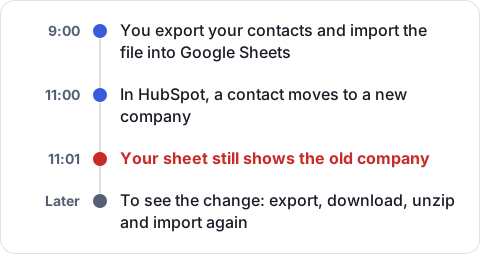
An export holds your contacts as they were when you clicked Export. A contact who changes jobs an hour later is still at the old company in your sheet. To see the change, you export again, download, unzip and import again.
If you need the list once, for an audit, a backup or a one-off mailing, that is fine. The export is part of HubSpot and costs nothing extra.
If your team reads the list every day, a sync saves the repeat work. CRM Sheet Sync keeps HubSpot contacts, companies or deals in a Google Sheet and checks HubSpot for changes every minute (every 30 seconds on the Pro plan):
| HubSpot export | CRM Sheet Sync | |
|---|---|---|
| How current the sheet is | As of the export | Checked every minute |
| A contact is edited | Export and import again | Its row is updated |
| A contact is deleted or merged | Still in your file | Its row is cleared within about a minute |
In our test on a real HubSpot account, five edits reached the sheet in 5 to 38 seconds. Row 1 holds the property names as you see them in HubSpot, and column A holds the HubSpot record ID. CRM Sheet Sync only reads HubSpot: it never changes your contacts.
Setting it up takes three steps: sign in with Google, connect HubSpot, and choose contacts and the properties you want as columns. The setup guide on its site shows each step. The first 7 days are free, with no card to start.
Sources
- HubSpot Knowledge Base: Export your records, read 16 November 2026
- HubSpot Knowledge Base: Export your content and data, read 16 November 2026
- Google Docs Editors Help: Import data sets & spreadsheets, read 15 November 2026
Frequently asked questions
Can you export HubSpot contacts on a free account?
Yes. HubSpot lists record exports as available with all products and plans. Your user needs the Export permission.
How do I export HubSpot contacts to Excel?
Choose XLSX as the file format. XLSX holds up to 16,384 columns and XLS only 256; to export every property, choose CSV, which has no column limit.
How do I export all contacts from HubSpot?
Open the All contacts view, click Export, then Customize and choose All properties on records. The file includes contacts who unsubscribed: HubSpot suggests the filter Unsubscribed from all email is not equal to True to leave them out.
How do I export only some contacts?
Filter the contacts list, save it as a view, then open that view and click Export.
How long does the HubSpot export link last?
30 days. After that, export again to get a new link.