
Build a pipeline report in Google Sheets with COUNTIFS and SUMIFS
Count your deals and add up their amounts by stage, by owner and by close month in Google Sheets, with two formulas that work on any CRM's export.

To build a pipeline report in Google Sheets, keep your deals in one tab, list your stages in another, and use two formulas: COUNTIFS counts the deals in each stage, and SUMIFS adds up their amounts. Add a second condition to split the totals by owner or by close month. It works on deals from any CRM. Here is the whole report, built on an example you can copy.
Start from one row per deal
Put your deals in a tab named Deals: one row per deal, one column per field. They can come from an export of HubSpot, Salesforce or Pipedrive opened in Google Sheets, or from a sheet a sync tool keeps up to date. The formulas below use the stage in column B, the owner in C, the amount in D and the close date in E.
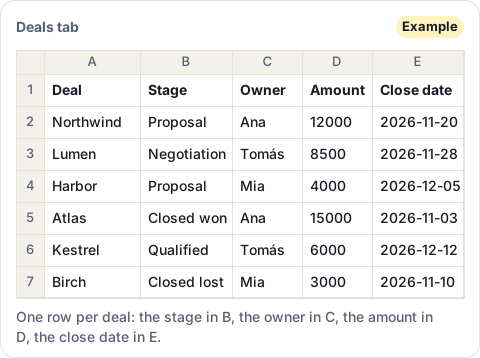
Before you write a formula, check two things:
- Amounts are numbers, with no currency sign typed into the cell.
- Each stage is spelled one way. Google’s help says COUNTIF isn’t case sensitive, but a space at the end of “Proposal “ makes it a different value. Type
=UNIQUE(Deals!B2:B)in an empty column to list every value the stage column holds, and fix any near-twin.
Count the deals and add up the amounts by stage
- Add a tab named Report. In A1 type Stage, in B1 Deals, in C1 Amount.
- From A2 down, type your stages in your pipeline’s order. (UNIQUE lists them in the order they first appear in the deals, which is rarely the pipeline’s.)
- In B2, count the deals in that stage:
=COUNTIFS(Deals!B:B, A2) - In C2, add up their amounts:
=SUMIFS(Deals!D:D, Deals!B:B, A2) - Select B2:C2 and fill down to your last stage.
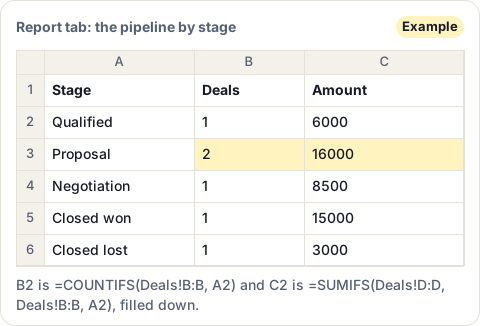
COUNTIFS takes pairs: a range to check, then what to look for in it. SUMIFS takes the range to add up first, then the same pairs. Google’s COUNTIFS help asks for every range to have as many rows and columns as the first one, and whole columns such as B:B and D:D always do.
Split the totals by owner
Each extra pair narrows the count: a deal is counted only when it meets every pair. To see what each owner has won, list the owners in E2 down, then:
- deals won:
=COUNTIFS(Deals!C:C, E2, Deals!B:B, "Closed won") - amount won:
=SUMIFS(Deals!D:D, Deals!C:C, E2, Deals!B:B, "Closed won")
In the example, Ana has won one deal for 15000, and Tomás and Mia none.
Keep only the deals closing this month
How you write a date condition depends on what the close date column holds.
Real dates. Compare them with DATE, joined to the operator with &. For the deals closing in November 2026:
=SUMIFS(Deals!D:D, Deals!E:E, ">="&DATE(2026,11,1), Deals!E:E, "<"&DATE(2026,12,1))
Text that looks like a date, such as 2026-11-20. Google’s help describes > and < for cells that hold numbers, and matches a text cell against a text criterion. So match the text with a wildcard: * stands for any characters, and "2026-11*" matches every close date in November 2026. Google documents wildcards for SUMIF and COUNTIF, which take one condition each:
- amount:
=SUMIF(Deals!E:E, "2026-11*", Deals!D:D) - deals:
=COUNTIF(Deals!E:E, "2026-11*")
In the example, four deals have a November close date (Northwind, Lumen, Atlas and Birch), for 38500. If the first formula returns 0 while you can see November dates in column E, the column probably holds text: try the wildcard.
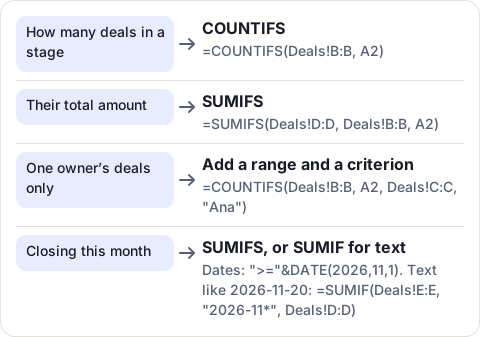
Which formula answers which question
Keep the report current
The formulas recalculate whenever the Deals tab changes. If that tab is an export, the report is as old as the export: to see this week’s pipeline, you export and import again.
If your deals are in HubSpot, CRM Sheet Sync keeps them in a Google Sheet for you. It checks HubSpot every minute, or every 30 seconds on Pro. Stages and owners show their names, amounts are numbers, and the close date is the day as text, so the wildcard formula above is the one to use. Its tab starts with the HubSpot ID in column A and your properties in the order you chose, so change the tab name and the column letters in the formulas to match. It only writes to the tabs it creates, so your Report tab stays as you built it.
Sources
- Google Docs Editors Help: COUNTIFS, read 17 November 2026
- Google Docs Editors Help: SUMIFS, read 17 November 2026
- Google Docs Editors Help: COUNTIF, read 17 November 2026
- Google Docs Editors Help: SUMIF, read 17 November 2026
- Google Docs Editors Help: UNIQUE, read 17 November 2026
Frequently asked questions
What is the difference between COUNTIF and COUNTIFS?
COUNTIF counts the cells of one range that meet one criterion. COUNTIFS takes several pairs of a range and a criterion, so you can count the deals in one stage that also belong to one owner.
Can SUMIFS use more than one criterion?
Yes. Give the range to add up first, then as many pairs of a range and a criterion as you need, for example the stage column and "Proposal", then the owner column and "Ana".
Can I use wildcards in COUNTIF and SUMIF?
Yes, in a text criterion: * matches any run of characters and ? matches one character, so "2026-11*" matches text dates in November 2026. To match a real * or ?, put a ~ before it.
Do the ranges in COUNTIFS have to be the same size?
Yes. Google's help says every extra range must have the same number of rows and columns as the first one. Whole columns such as B:B and D:D always match.
Does the report update when the deals change?
The formulas recalculate when the Deals tab changes. If the tab comes from an export, it only changes when you import a newer export.