
How to export a HubSpot report to Excel or CSV
Export a HubSpot report as a CSV or Excel file, email it on a schedule, or save it as an image, and know which reports can't be sent as a file.

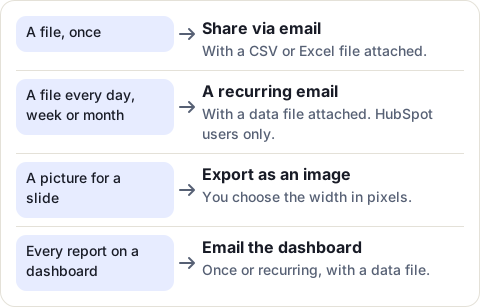
To export a HubSpot report, go to Reporting > Reports, hover over the report, and click Actions. From there you can email it with a CSV or Excel file attached, once or on a schedule, or export it as an image. Reports in the analytics suites have their own Export unsummarized data button. Here is each way, step by step, and the report types that can’t be sent as a file.
What the file contains
The file holds the report’s fields, not every property of the records:
- Single object reports export the properties in the Selected properties section of the report builder’s Data tab.
- Advanced custom reports export the fields on the builder’s Configure tab.
To get a column into the file, add it to the report first.
Email a report with a CSV or Excel file
- Click More, then Reporting > Reports.
- Hover over the report, click Actions, then Share via.
- Select Email, then click Next.
- In Internal recipients, choose who gets it. To get the file yourself, pick your own user.
- Click Attach downloadable file and choose the file type. With No attachment, the email only shows a picture of the report.
- Write a subject and a message, then click Send now.
To send the file to someone outside your HubSpot account, enter their address under Other recipients. That works for one-off emails only, and their email domain must be verified in your account.
Get the file every day, week or month
Before choosing recipients (between steps 3 and 4), select Yes, this is a recurring email. Give it a nickname that only you see, pick Daily, Weekly or Monthly, the day and the time, and finish with Schedule email instead of Send now. Recurring emails go to HubSpot users only.
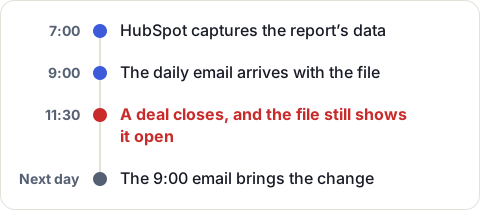
HubSpot takes the data two hours before the email goes out. A daily email at 9:00 holds the numbers from 7:00, and anything that changes after that waits for the next day’s email:
To change or stop a recurring email later, hover over the report and click Actions > Manage recurring shares. Delete it at least two hours before its next send, or that one still goes out.
Reports that can’t be sent as a file
Only some report types can be attached as a file:
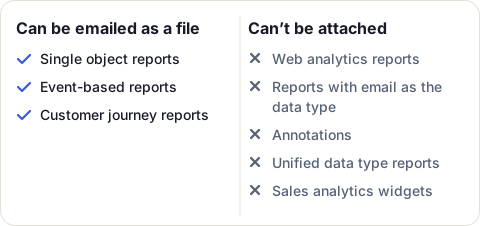
For reports in the analytics suites, use their own export instead:
- In Reporting > Reports, in the left sidebar under Analytics suites, expand the suite and the category, then select the report.
- Set the date range and filters at the top.
- Click Actions > Export unsummarized data, choose the file format, and click Export.
HubSpot notifies you and sends an email when the file is ready. This export can’t be made recurring.
Funnel reports have a catch: the chart shows records that changed stage in the date range, but its export holds the records created in that range. The file and the chart won’t match.
Export a report as an image
For a slide or a message, hover over the report, click Actions > Export as an image, set the width in pixels, and click Save.
Send a whole dashboard
In Reporting > Dashboards, open the dashboard and click Share > Email this dashboard. It works like a single report, once or recurring, with a data file for each supported report. Custom reports, web analytics and the other types listed above are left out of the file, so export those one at a time. A recurring dashboard email shows the data its creator is allowed to see. You can pick which reports to include and whether the dashboard’s filters apply. On Professional and Enterprise plans, a one-off email can go to people outside your account, up to 100 such emails a day.
When you need the records behind the report
A report export suits a weekly summary. If your team builds its own numbers in Google Sheets, the raw records are often more useful than a report’s totals, and they need to stay current.
CRM Sheet Sync keeps your HubSpot deals, contacts or companies in a Google Sheet, with the properties you choose as columns. It checks HubSpot every minute, or every 30 seconds on Pro. A deal that closes at 11:30 shows as closed in the sheet a minute or so later. Owners, pipelines and stages show their names, ready for a pivot table or a SUMIFS. It doesn’t copy HubSpot’s reports themselves: you build the totals in the sheet.
Sources
- HubSpot Knowledge Base: Share or export reports and dashboards, read 16 November 2026
- HubSpot Knowledge Base: Export your content and data, read 16 November 2026
Frequently asked questions
Can HubSpot export a report to Excel?
Yes. A report can be exported as a CSV or Excel file, or emailed with a CSV, XLS or XLSX file attached. By email, only single object, event-based and customer journey reports can be sent as a file.
Can I schedule a HubSpot report export?
Yes, as a recurring email: daily, weekly or monthly, with the file attached. It goes to HubSpot users only, and the data is captured two hours before the send time.
Can I export a whole HubSpot dashboard?
Yes. Share > Email this dashboard sends a data file for each supported report, once or on a schedule. You can include only some reports, and choose whether the dashboard's filters apply.
Why doesn't my funnel report export match the chart?
The chart shows records that changed stage in the date range, but the export holds the records created in that range. HubSpot notes that the two won't match.