
How to find and merge duplicate contacts in HubSpot
Find duplicate contacts with HubSpot's duplicates tool, merge two by hand on any plan, and know what a merge keeps, changes and can't undo.

To merge two duplicate contacts in HubSpot, open the contact you want to keep, click Actions > Merge, pick the duplicate, choose which values to keep, and click Merge. That works on every plan. On Professional and Enterprise plans, the Manage duplicates tool also finds likely pairs for you. A merge can’t be undone, so here is how to find duplicates, merge them, and what a merge changes.
Why duplicates get past HubSpot
HubSpot already stops the most common duplicate: two contacts with the same email.
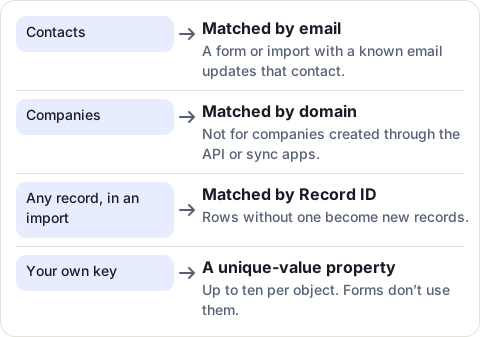
Three ways duplicates still get in:
- The same person with two emails, for example a work and a personal address. HubSpot matches on email, so it sees two people.
- An import without an Email column or another unique key, such as Record ID. HubSpot then makes a new contact for every row of the file, even for people it already has.
- Companies from an integration. Companies created through the API, including by sync apps you install, are not matched by domain.
Find duplicates with the Manage duplicates tool
The tool needs a Professional or Enterprise subscription. You need Super Admin, or the data quality tools access with Edit permission on all contacts.
It compares first name, last name, email address, IP country, phone number, zip code and company name. It checks as new contacts are created, and once a day on days when none are.
- Click More, then CRM > Contacts.
- At the top right, click the three vertical dots, then Manage duplicates.
- Select the rule to review. The default one uses the properties above.
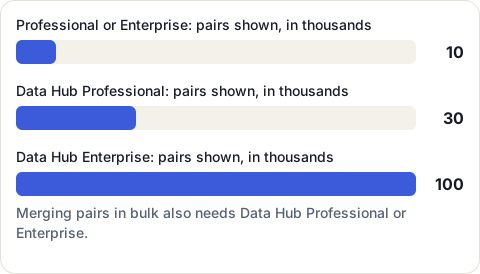
You get a table of likely pairs. Edit columns adds the properties you want to compare, and Filter narrows it by owner, create date, similarity, last activity date, discovered date or lifecycle stage. Larger plans show more pairs:
Merge or reject a pair
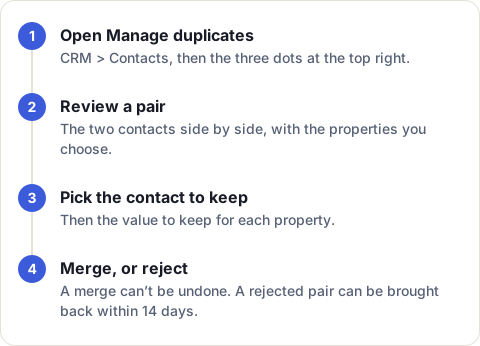
- Click Review next to a pair. To compare other properties, click Set properties to review.
- Select the contact to keep, or pick a rule in Merged by.
- Select which value to keep for each property.
- Click Merge and review next, or Reject and review next if the two are different people.
A rejected pair stops appearing in the tool, though it can come back if one of its contacts is later merged into another record. To bring one back, click View history, then Undo, within 14 days, as long as neither record changed in the meantime.
With Data Hub Professional or Enterprise, you can tick several pairs, click Review, and merge them all at once. A Merge criteria setting picks which record survives in each pair: the most recent or the oldest engagement, the one created first or last, or the most recently updated. Check the pairs first: like a single merge, a bulk merge can’t be undone.
Merge two contacts on any plan
When you already know the two contacts, you don’t need the tool:
- Click More, then CRM > Contacts, and click the name of the contact you want to keep. This is the primary record.
- In the left panel, click Actions, then Merge.
- Search for the duplicate and select it.
- Click the values you want to keep. The primary record’s values are selected at first.
- Click Merge.
You need the Merge records or Super Admin permission. HubSpot can take up to 30 minutes to move all the activities. A merge fails when the two records have been through 250 merges between them, or when the result would have more associations than your account allows.
What a merge keeps, and what it changes
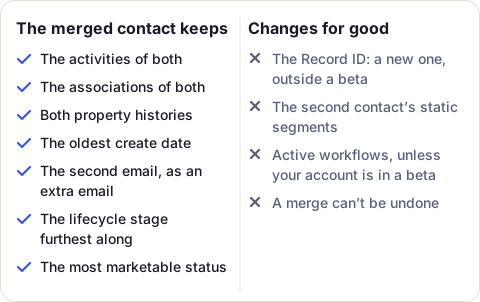
- Values: the primary contact’s values win. Where it has none, the other contact’s value is used.
- Email: the primary email stays; the other one becomes a secondary email address.
- Lifecycle stage: the stage furthest down the funnel is kept, so a lead merged with a customer is a customer.
- Counts: the numbers of conversions and of unique forms submitted are added together.
- Marketing status: the most marketable status is kept, so merging a marketing contact with a non-marketing one gives a marketing contact.
- Dates on values: a value the merge changes shows the date and time of the merge, not its original date.
- Record ID: the merged contact gets a new one, unless your account is in HubSpot’s Primary ID Preservation beta, where the primary contact keeps its ID. The Merged Contact IDs property lists the old IDs, so you can still find it by them.
- Segments and workflows: the second contact leaves its static segments. Both contacts leave the workflows they were active in; in the same beta, the primary one stays in its workflows.
- Salesforce: if the contacts sync with Salesforce, only the primary contact keeps syncing.
- No way back: HubSpot can’t unmerge. For contacts, you can delete the second email from the merged contact and create a new contact with that address.
Stop the next duplicates at the import
Imports are a common way in for duplicates. HubSpot suggests a check before each import:
- Export your contacts with their Record ID and at least one column the new file also has, such as the email.
- In Google Sheets or Excel, look up each row of the new file in the export with VLOOKUP.
- Copy the Record ID onto every row that already exists in HubSpot.
- Split the file in two: the rows with a Record ID, and the new people.
- Import both. The first updates your existing contacts; the second creates the new ones.
For your own unique keys, such as a customer number, HubSpot allows up to ten custom properties per object that must have unique values. It then refuses a second record with the same value, by hand or by import, though forms don’t check them.
If your contacts are already in a Google Sheet kept current by CRM Sheet Sync, column A holds each contact’s HubSpot ID. If that sheet holds all your contacts (no filter) and their email, it is the export of step 1, already up to date: look the new file up in it, and match its HubSpot ID column to Record ID when you import.
Sources
- HubSpot Knowledge Base: Deduplicate records in HubSpot, read 17 November 2026
- HubSpot Knowledge Base: Review and manage duplicate records, read 17 November 2026
- HubSpot Knowledge Base: Merge records, read 17 November 2026
Frequently asked questions
Can you unmerge contacts in HubSpot?
No. A merge can't be undone. For contacts, you can delete the second email address from the merged contact and create a new contact with it.
How does HubSpot find duplicate contacts?
The duplicates tool compares first name, last name, email address, IP country, phone number, zip code and company name. It checks as contacts are created, and once a day on days when none are.
Does HubSpot allow two contacts with the same email?
No. You can't create a contact by hand with an email another contact has, and a form or an import with that email updates the existing contact instead. If several contacts already share an email, an import row with it fails.
Can I merge duplicate contacts on the free plan?
Yes. Merging two records from a record's Actions menu works on every plan. The Manage duplicates tool, which finds the pairs for you, needs a Professional or Enterprise subscription.
What happens to the email addresses when you merge contacts?
The contact you keep keeps its email as the primary one. The other contact's email is added to it as a secondary email address.