
How to send HubSpot data to Google Sheets with a workflow
Set up HubSpot's Create Google Sheet row and Update data in a Google Sheet actions, and know their limits before you build a sheet on them.

HubSpot workflows can write to Google Sheets with two actions. Create Google Sheet row adds a row for each record that goes through the workflow. Update data in a Google Sheet changes a row you already have. Both need a Professional or Enterprise plan and the Google Sheets app connected to HubSpot. Here is how to set up each one, and the limits to know before a report depends on them.
Before you start
- Plan: Marketing Hub, Sales Hub, Service Hub, Data Hub, Smart CRM or Revenue Hub, at Professional or Enterprise.
- Permissions: Super Admin, or Edit Workflows.
- The app: connect Google Sheets to HubSpot from the App Marketplace, or from inside a workflow.
- The spreadsheet: the action can only pick a sheet that the user who connected Google Sheets owns, has been shared, or can open in a shared drive. If someone else connects the app later, the list of sheets may change, so check the workflows that use it.
Set up the sheet before the workflow
HubSpot needs a label on each column to know where to send data, so the sheet needs a clean first row:
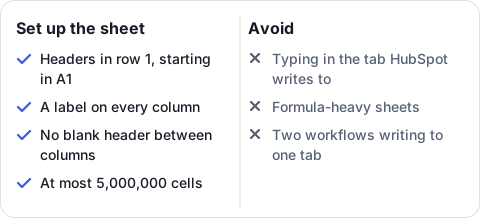
- The header row starts in the first column of the first row, and every column has a label. HubSpot can’t send data to a column without one.
- Don’t type your own data into the tab HubSpot writes to. For notes or totals, use another tab that refers to it.
- HubSpot advises against formulas in a sheet it updates: every change recalculates them, which slows the action down or makes it fail. Use as few as you can, or add them once the updates are done.
- Use one workflow per tab. Two workflows writing to the same tab can duplicate data.
Add a row for each record
- Click More, then Automation > Workflows (if More isn’t there, go straight to Automation > Workflows). Edit a workflow, or create one.
- Click the + icon to add an action.
- In the left panel, under Google Sheets, select Create Google Sheet row.
- Pick the Spreadsheet, then the Sheet (the tab at the bottom of the spreadsheet).
- For each column, choose the sheet’s Header, then the HubSpot Property to send into it.
- Click Save.
Each record the workflow enrolls gets a new row, under the existing data. A row holds up to 20 cells. The action never fills in a row that is already there: it inserts a new one, which can affect the cells and formulas that refer to that range. Point formulas only at rows that already hold data. And when a request times out, HubSpot may write the same row twice; delete the copy by hand.
Update a row you already have
- Add an action and select Update data in a Google Sheet.
- Pick the Spreadsheet and the Sheet.
- Under Lookup column header, pick the column that identifies a record, such as Email. Under Lookup column property, pick the HubSpot property that matches it.
- Under create a new row if none match, choose Yes to add a row when no row matches, or No to skip the record.
- Under Select columns to update, pick each column, and the property or the earlier action’s result to write into it. Click Add a column for the next one.
- Click Save.
HubSpot updates the first row whose lookup cell matches. A row it adds because none matched holds only the columns you chose to update.
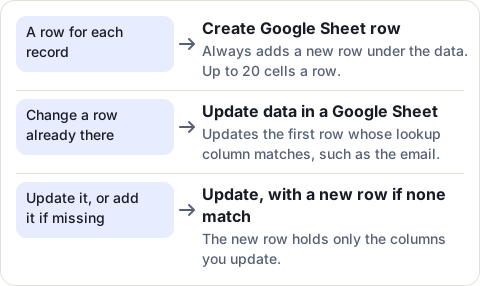
What the sheet receives: internal values and timestamps
By default, HubSpot sends a property’s internal value, not the label you see in HubSpot, and it sends dates as Unix timestamps in milliseconds:
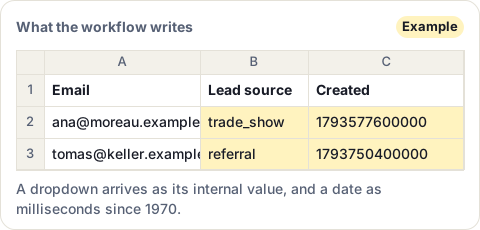
To turn a timestamp into a date, add a column with =A2/1000/60/60/24 + DATE(1970,1,1), with A2 replaced by the timestamp’s cell. The result is a date and time in UTC, not in your HubSpot account’s time zone. On Data Hub Professional, a Format data action placed before the Google Sheets action can format the date first; you then send its output instead of the property.
When the action stops working
Check these first:
- The spreadsheet still exists, and the right tab is selected.
- The mapped headers are still there, the header row still starts in A1, and no header is blank.
- The sheet is not too large or full of formulas. Try the action on a plain sheet.
- The HubSpot user who connected Google Sheets is still active. A deactivated user gives the error “Spreadsheet” options could not load due to 3rd-party API failure.
If that doesn’t help, disconnect Google Sheets and connect it again, with an active HubSpot user and a Google account that can open the sheets.
When the sheet must follow every change
A workflow writes when a record goes through it, one row at a time, and the sheet holds what HubSpot sent at that moment. That suits a log of new leads. A table that should always match HubSpot needs an Update action for every change you care about, and readable names and dates need extra steps.
CRM Sheet Sync takes the other route: it fills a new sheet with your contacts, companies or deals and keeps it in step, checking HubSpot every minute, or every 30 seconds on Pro. Owners, stages and dropdowns show their names, dates are dates in your HubSpot account’s time zone, and there is no limit on columns. Its page compares it with workflows and the other ways to get HubSpot data into Sheets.
Sources
- HubSpot Knowledge Base: Add data to Google Sheets with workflows, read 17 November 2026
Frequently asked questions
Which HubSpot plans can send data to Google Sheets with a workflow?
A Professional or Enterprise subscription of Marketing Hub, Sales Hub, Service Hub, Data Hub, Smart CRM or Revenue Hub. You also need Super Admin or Edit Workflows permissions.
Why does my Google Sheet show numbers instead of dates?
HubSpot sends dates as Unix timestamps in milliseconds. In another column, =A2/1000/60/60/24 + DATE(1970,1,1) turns one into a date: replace A2 with the timestamp's cell.
How many columns can a HubSpot workflow send to Google Sheets?
The Create Google Sheet row action adds up to 20 cells of data per row.
Can a HubSpot workflow update an existing row in Google Sheets?
Yes, with the Update data in a Google Sheet action. It updates the first row whose lookup column matches a property of the record, such as the email, and can add a row when none matches.
Why can't I find my spreadsheet in the workflow action?
The list only shows spreadsheets the user who connected Google Sheets owns, has been shared, or can open in a shared drive. Share the sheet with that user, or reconnect the app with another one.